Using the shadow map composer
Dynamic shadows are realistic shadows Kanzi calculates based on object geometry, the distance of the object from the light source, and the distance from the object on which the shadow is cast.
In Kanzi to create dynamic shadows you need to use the Shadow Map Composer. These properties of the Shadow Map Composer set the shadows:
- Shadow Depth Default Material sets the material used for rendering the depth from the viewer
- Shadow Map Default Material sets the shadow material used for the objects that have Shadow Receiver Object property and receive the shadows.
- Shadow Map Width and Shadow Map Height set the resolution of the shadow map.
For the Shadow Map Composer to work you need a camera that simulates a light source, use the Shadow Receiver Object property on objects that receive shadows, and Shadow Casting Object property on objects that cast shadows.
Creating dynamic shadows
To create dynamic shadows:
- Create the objects that cast and receive shadows, in the Properties click Add Properties, and add:
- Shadow Casting Object to objects that cast a shadow and enable it.

- Shadow Receiver Object to objects that receive a shadow and enable it.
The rendering pipeline overrides object materials that have the Shadow Receiver Object property. If you want to use a different shadow material for an object, manually set the shadow mapping material manually for the object.

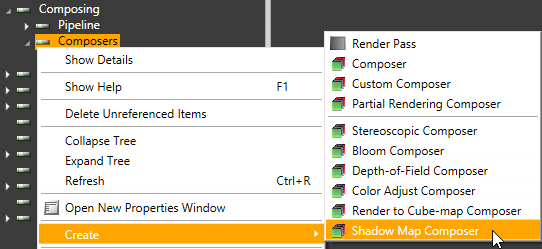
- In the Library right-click Composing > Composers and select Create > Shadow Map Composer.
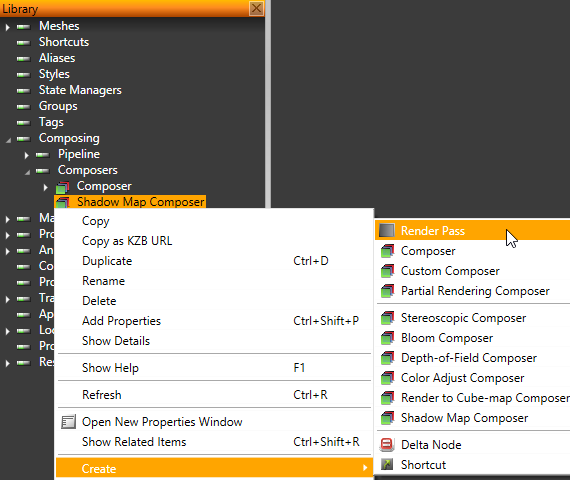
- Right-click the Shadow Map Composer and select Create > Render Pass.
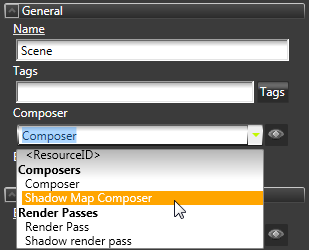
- In the Project select the scene where you want to create dynamic shadows, and in the Properties set the Composer property to the Shadow Map Composer.
- In the Project create a Camera that is used for casting shadows, in the Properties click Add Properties, add the Shadow Caster Camera property, and enable it.
Create as many cameras in a scene as there are shadow maps. However, make sure that the shader can handle multiple shadow maps.

- Place the camera in the scene to the position from where the light is coming. See Setting the position of cameras in the Preview.
- In the Project select the objects that receive shadows, and in the Properties set the Material property to PhongShadowMapMaterial.
Adjusting shadows
After setting up your project and objects to cast shadows, adjust the shadows until you get the result you need.
To adjust shadows:
- In the Library select Composing > Composers > Shadow Map Composer and in the Properties adjust the Shadow Map Width and Shadow Map Height properties to set size of the shadow map.
- In the Library select Materials and Textures > Materials > PhongShadowMapMaterial, and in the Properties adjust:
- Shadow Bias to adjust the softness of the shadows
- Shadow Intensity to adjust the intensity of the shadows
- In the Project select the shadow casting camera:
- In the Properties or in the Preview adjust the position of the camera in the scene. See Setting the position of cameras in the Preview.
- In the Properties adjust the FOV property value so that the objects in the scene fit in the area visible by the shadow casting camera.
Debugging shadows
To start debugging shadows:
In the Library select Composing > Composers > Shadow Map Composer and in the Properties enable the Shadow Map Visualize Shadow Maps property.
In the bottom-left part of the Preview you can now see your scene as your shadow casting camera sees it. This is the shadow map texture:
- If the shadow map texture is completely or close to white, in the Project select the camera that casts shadows, and in the Properties adjust the Z Near and Z Far properties values.
Note that the distance of the shadow casting camera from the shadow casting objects and the values of the Z Far and Z Near properties are related. For the shadow map algorithm to produce the best result, set the Z Near and Z Far properties are as close to the scene size as possible. When they are not the fragment depth comparison can fail because the precision is wrong. For example, a scene that is 50 units big, and without any objects very close to the camera, the Z Near value can be 1 and Z Far 50.
- If the shadows are not visible, make sure that the objects on which the shadows should appear use the PhongShadowMapMaterial.
- If you cannot see the shadow map texture at all in the Preview, you do not have in the scene a camera that has the Shadow Caster Camera property enabled.
See also
Composers
Open topic with navigation